Super HomeScreen
- 4.0
- Rating
- 1.00M
- Installs
- Free
- Price

 Analysis by App-foxy
I spent time using Super HomeScreen as a practical replacement for the standard Android home screen, and my main impression is clear: it is aimed at people who want their most useful information and actions visible immediately, without turning the launcher into a decorative project. It belongs to the personalization category, but its appeal is less about visual novelty and more about reducing the small delays involved in checking a phone.
The app comes from lighten apps and is free to use. Its store positioning describes an efficient launcher built around speed and information, which matches the way it feels in everyday use. Rather than treating the home screen as an empty canvas for icon arrangements, it treats it as a starting point for quick decisions: what do I need to open, check, or reach right now?
That focus makes it interesting for a particular kind of Android user. If you want a home screen that helps you get to essentials quickly, it is worth considering. If you enjoy carefully themed layouts, elaborate gestures, or deep visual customization, the usual feature-heavy launchers may suit you better.
You May Also Like

 Blood Strike: 2.5 Anniversary
Blood Strike’s Loadouts Turn Every Drop Into a Tactical Gamble
A close look at Blood Strike’s custom loadouts: how fast access to signature weapons reshapes its battle royale rhythm, rewards preparation, and narrows the gap between fights.

 Pandora - Music & Podcasts
Pandora’s Music Is Easy to Start, but Harder to Recover
Pandora’s strength is its low-effort path from a seed to a station. Its weak spot is how much confidence it asks you to place in connection, setup, and quiet recovery.

 8 Ball Pool
8 Ball Pool Is Built on Rivalries, Rematches, and Routine
A close look at the rivalries, rematches, shared routines, and unanswered safety questions that turn a quick pool match into a persistent mobile community.

 Samsung Music
Samsung Music’s Quiet Strength Is Playing What You Already Own
Its reach comes less from spectacle than from dependable access to a personal library. That simplicity is both the app’s strongest retention engine and its ceiling.

 AccuWeather: Weather Radar
AccuWeather Review: A Quick, Clear Forecast for Everyday Decisions
For everyday plans, the best forecast is the one you can understand quickly. AccuWeather makes rain timing, radar, and local conditions easy to act on, with a few trade-offs.

 Hill Climb Racing
Why Hill Climb Racing Still Turns Crashes Into One More Run
A tiny car, a bumpy hill and one more upgrade: Hill Climb Racing keeps resurfacing because its simple chaos makes every near-miss feel personal.
More From Our News Desk



A home screen designed around immediate access
I find the most useful way to judge a launcher is to ask whether it makes my routine easier, not whether it offers the most ways to decorate a screen. That distinction matters here: Super HomeScreen is built for quick access and visible essentials, so the next section looks at how that focus can help—and what kind of everyday habits make it worthwhile.
What makes the approach different
Most default launchers are built to be broadly acceptable. They give you a familiar grid, a dock, widgets, and an app drawer, then leave you to decide how to organize everything. That works, but it also means the first screen often becomes a storage area for icons rather than a useful dashboard.
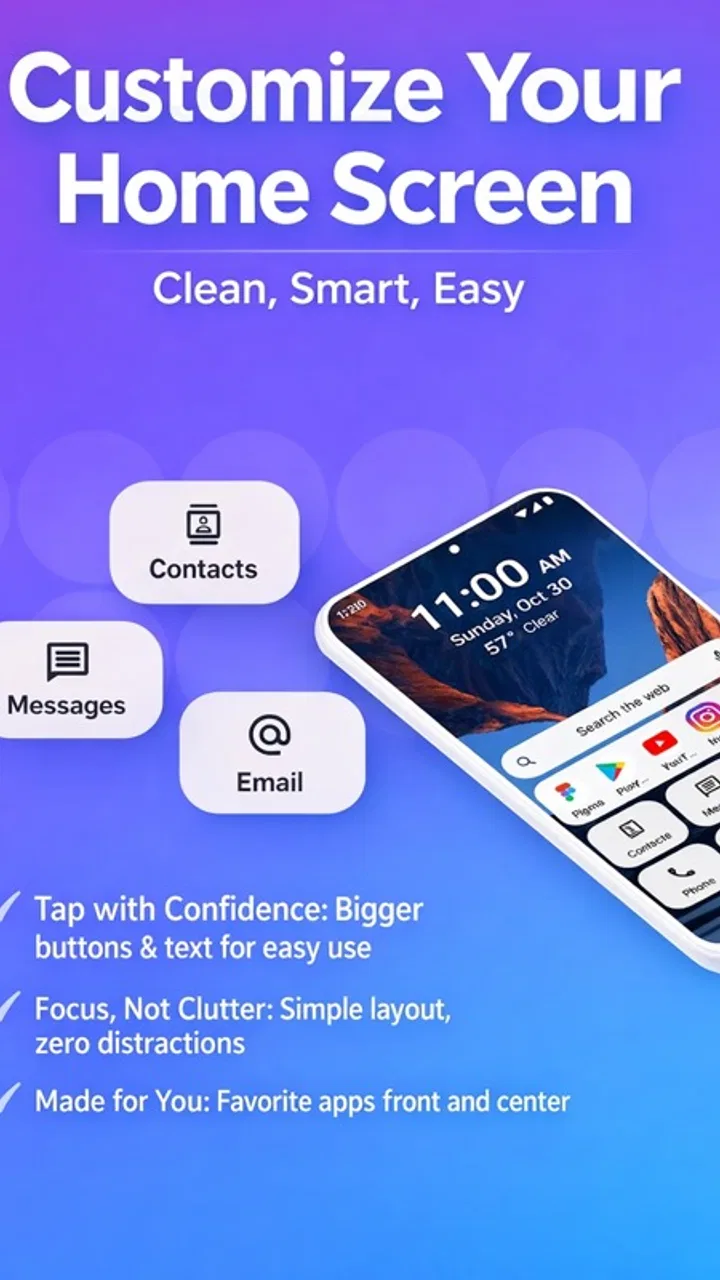
Super HomeScreen takes a more purposeful direction. The central idea is that the home screen should answer the first few questions I usually have after unlocking my phone: which apps matter today, what information deserves a quick glance, and how can I reach a regular task without searching through several pages?
I found that approach more valuable during short interactions than during long setup sessions. When I was checking something quickly, the launcher’s information-first character made the phone feel less cluttered mentally, even when the underlying app collection had not changed. That is a subtle benefit, but it is the reason I can see this being more useful than a purely cosmetic launcher.
The store short description calls it “Super HomeScreen,” but the more meaningful description is a focused starting point for the phone. It does not need to replace every part of Android to be useful. Its job is to make the first few seconds after unlocking more intentional.
How it fits into a normal day
Imagine leaving home in the morning and needing to check a message, open a calendar entry, and look at the weather before walking to the bus. With a conventional layout, those actions may involve finding separate icons, moving between screens, or relying on memory. A launcher that puts essential information and frequently used destinations closer to the surface can make that routine feel less fragmented.
That same pattern works for a workday. I might unlock the phone to open a notes app, check a task, or contact one person. The value is not that any single action becomes revolutionary; it is that the launcher keeps the first screen aligned with the way I actually use the device. This is especially helpful when the phone is used in brief bursts rather than for long browsing sessions.
A useful way to test it is to notice what you reach for repeatedly over several days. If your routine revolves around a small group of apps and quick information checks, the focused layout has a chance to feel natural. If your usage changes constantly, the same focus may feel restrictive because the home screen is less about displaying everything and more about prioritizing what matters.
Speed is more than opening apps quickly
When a launcher emphasizes speed, I do not judge it only by how fast an icon responds. I also look at the number of decisions required before an action begins. A screen can feel slow even when the animation is smooth if I have to scan several rows, remember where an app was placed, or open a drawer for a tool I use every day.
Super HomeScreen’s strongest idea is reducing that mental scanning. Its usefulness comes from presenting the phone as a set of immediate essentials rather than as a complete inventory. That can make the device feel calmer, particularly for people who have accumulated many installed apps but use only a fraction of them regularly.
There is a trade-off here. A highly organized launcher asks me to accept its priorities or spend time shaping them. The more I expect the home screen to adapt to changing contexts, the more important it becomes to check whether its organization matches my habits. I would not install it expecting every interaction to become automatically faster; I would install it because I want a more deliberate first screen.
Information at a glance without overcomplicating the phone
The information-centered concept is useful for people who dislike opening an app just to confirm something small. A home screen can serve as a visual checkpoint, helping me decide whether I need to take action or can put the phone away. That distinction matters because many phone checks are not really app sessions; they are quick confirmations.
For example, before starting a meeting, I may only need to confirm the next item on my schedule. Before leaving, I may want a quick look at conditions outside. The benefit of a launcher like this is strongest when the information I need is predictable and the screen presents it without making the phone feel like another task list.
At the same time, I would be careful about filling the first screen with too much information. The whole point of an efficient launcher is lost if the glanceable view becomes visually noisy. My practical advice is to keep only the details that change a decision. If an item is interesting but rarely affects what you do next, it probably belongs deeper in the phone.
Where it compares well with ordinary alternatives
The default launcher remains the easiest option for anyone who wants familiarity and minimal adjustment. It is usually the safest choice when several people use the same device or when you do not want your home screen behavior to change. Super HomeScreen is more appealing when the default arrangement feels passive and you want the first screen to do more than hold shortcuts.
Traditional customization launchers are often better for people who care about icon packs, elaborate grids, visual themes, and fine control over appearance. They can turn the home screen into a personal design project. Super HomeScreen makes a different promise in practice: it prioritizes usefulness over decoration. I prefer that trade-off when I am trying to reduce friction, but I would not choose it for a heavily themed setup.
Minimalist launchers can also overlap with this app’s audience, especially for users trying to reduce distractions. The distinction is that a minimalist launcher may emphasize removing things, while Super HomeScreen is more concerned with placing essentials where they can be seen and reached. Someone who wants an almost empty screen may prefer the former; someone who wants a compact information hub may prefer the latter.
Small workflow changes that make the concept work
One of the best ways to use this kind of launcher is to organize around actions rather than app ownership. Instead of thinking “these are my social apps” or “these are my work apps,” I would think “these are the things I need before work,” “these are the things I use while traveling,” and “these are the actions I repeat every day.” That makes the first screen more useful than a simple alphabetical collection.
A second practical tip is to separate glanceable information from destinations. A piece of information should earn its place by helping me decide what to do next. A shortcut should earn its place by saving a repeated trip through the app drawer. Keeping those roles distinct prevents the home screen from becoming a crowded mixture of alerts, icons, and visual noise.
A third insight is to review the layout after a week rather than constantly adjusting it. Frequent rearranging can create its own friction because muscle memory never settles. I would start with the handful of apps and information sources I use most, then observe which items I actually touch. The launcher works best when it reflects behavior, not an idealized version of how I think I use my phone.
There is also a useful privacy-minded habit, even without changing any deeper phone settings: avoid placing sensitive information where it can be casually seen by someone nearby. An information-rich home screen is convenient, but convenience and visibility are connected. If the phone is often used in shared spaces, I would keep the glanceable view focused on non-sensitive details.
The limitations I noticed
The focused philosophy will not satisfy everyone. People who enjoy building a highly personal visual environment may find it too restrained or simply pointed in the wrong direction. A launcher is the first layer of the phone, so even a small mismatch in layout or interaction style can become noticeable because it appears every time the device is unlocked.
Another limitation is the possibility of over-prioritization. The apps I consider essential on Monday may not be the ones I need on Saturday. If the launcher encourages a fixed set of priorities, I may occasionally have to work around it when my routine changes. That does not make the design bad, but it means the app is better for stable habits than for constantly shifting workflows.
I would also avoid assuming that a speed-oriented home screen removes every source of delay. Search, app loading, notifications, and the behavior of individual apps still affect the overall experience. Super HomeScreen can improve the starting point, but it cannot make an unrelated app respond faster or replace the need for Android’s deeper settings.
For users who depend on extensive launcher-specific customization, the comparison is even less favorable. If your ideal setup includes detailed gesture mapping, elaborate icon placement, or a carefully constructed theme, a more established customization-focused alternative may offer a better fit. The right question is not whether Super HomeScreen has every possible launcher feature; it is whether its focused approach solves your particular annoyance.
Who should install it
I think this app is best for people who unlock their phone frequently for short, practical tasks. Students, busy professionals, parents, and anyone who keeps returning to the same few tools may appreciate a home screen that emphasizes immediate access. It can also suit someone whose default launcher feels cluttered but who does not want to spend hours designing a replacement.
It is a sensible choice for an older compatible Android phone as well, provided the device runs Android 8.0 or later. The app’s broad compatibility makes it easier to consider on devices that are not running the newest software, although the real benefit will still depend on how well its organization matches the phone’s owner.
The age rating is Everyone, and the app is free, so there is little financial risk in trying it. I would still approach installation as a short experiment rather than an automatic permanent switch. Use it during a normal week, not only during setup, and pay attention to whether repeated tasks feel more direct or whether you keep searching for the old layout.
I would skip it if my main reason for changing launchers was visual customization. I would also skip it if I strongly prefer the standard Android arrangement and rarely feel friction when finding apps. A new launcher introduces a learning period, and there is no benefit in accepting that adjustment unless the information-first design addresses a real problem.
Compatibility, maturity, and everyday expectations
The current version is 3.1.3, and the app has reached over one hundred thousand installs with a four-point average from roughly seven hundred ratings. Those figures suggest that it has attracted a meaningful group of users, while the rating also feels appropriately mixed rather than presenting it as a universal solution. I read that as a reason to judge the fit of the design, not as a guarantee that every phone will feel identical.
It was released on August 28, 2025, so I would keep expectations grounded. A relatively recent app can have a clear direction, but users who need years of launcher customization history or a huge ecosystem of add-ons may be more comfortable with a long-established alternative. That is not a criticism of lighten apps; it is simply the difference between choosing a focused tool and choosing a mature platform.
Because the app is free, the main cost is attention: learning where things are and deciding what deserves space on the first screen. That cost is small if the default launcher already frustrates you. It is unnecessary if you are satisfied with your current setup. I would make the decision based on daily friction rather than on the promise of a dramatic transformation.
My verdict after using it
Super HomeScreen is a practical launcher for people who want their phone’s first screen to behave like a compact control panel. I like its clear priority: show useful information, surface essentials, and reduce the number of steps between unlocking and doing something meaningful. It feels more purposeful than a standard icon grid without demanding that I turn the home screen into a visual hobby.
Its weakness is inseparable from its strength. The more focused the layout becomes, the less attractive it is to users who want unlimited personalization or a constantly changing arrangement. It also cannot solve every kind of phone sluggishness, and its value depends heavily on whether my everyday habits are stable enough to benefit from prioritization.
For me, the recommendation is straightforward. Try it if your current home screen makes simple tasks feel scattered, especially if you repeatedly check the same information or open the same small group of apps. Give it a real week and organize it around actions rather than categories. If you want a decorative, deeply configurable launcher, choose a different direction. But if you want a free, focused starting point that puts essentials ahead of clutter, this app has a convincing reason to stay installed.
FAQs for Super HomeScreen
01What is Super HomeScreen, and what does it do?
Super HomeScreen is an Android customization app designed to give your device’s home screen a different look and feel. Depending on the available version and features, it may provide options such as custom wallpapers, shortcuts, widgets, icons, layouts, or visual themes. It is mainly intended for users who want more control over how their home screen is organized and displayed than the standard launcher provides.
02Is Super HomeScreen compatible with every Android phone or tablet?
Compatibility can vary depending on your Android version, device manufacturer, screen size, and the permissions supported by the operating system. Before downloading, check the app’s Google Play listing for the required Android version and supported devices. Some features may work differently on Samsung, Xiaomi, Motorola, or other phones because manufacturers use their own home-screen systems and customization restrictions.
03Does Super HomeScreen replace my default launcher?
A home-screen application may need to be selected as the default launcher in order to control the device’s home screen, app drawer, shortcuts, and navigation behavior. Super HomeScreen should explain this during setup, and you can normally change the default launcher later through Android Settings. If you only want to test it, keep your existing launcher available so you can switch back without losing your usual layout.
04Does Super HomeScreen require special permissions or affect privacy?
The permissions required depend on the features included in the installed version. A launcher may request permission to display over other apps, access notifications, use accessibility services, or create shortcuts, while wallpaper and widget features may need fewer permissions. Review every permission request carefully and avoid enabling optional access unless you understand why it is needed. Also check the developer’s privacy policy before using personal or sensitive information.
05Will Super HomeScreen slow down my device or use a lot of battery?
The effect on performance depends on your phone’s hardware and the features you enable. Animated backgrounds, live widgets, notification effects, frequent updates, and extra visual transitions can consume more memory and battery than a simple static layout. During testing, monitor battery usage and responsiveness, particularly on older devices. If the home screen feels slower, disable animations, remove unnecessary widgets, or return to your original launcher.
Pros
- Quick access to apps
- contacts
- and key phone functions
- Simple layout makes navigation approachable for new users
- Large icons can improve visibility and touch accuracy
- Useful for replacing cluttered or confusing default launchers
- Lightweight design may work well on older Android devices
Cons
- Customization options may feel limited for advanced launcher users
- Some features may require permissions that raise privacy concerns
- Compatibility can vary across Android versions and device brands
- Ads or upgrade prompts may interrupt the home-screen experience
- Launcher changes may reset after system updates or device restarts

Super HomeScreen
Gallery